Pose Transfer
Replace a composition in seconds by combining your character image with a reference pose
Get started for free
Features of copainter Pose Transfer
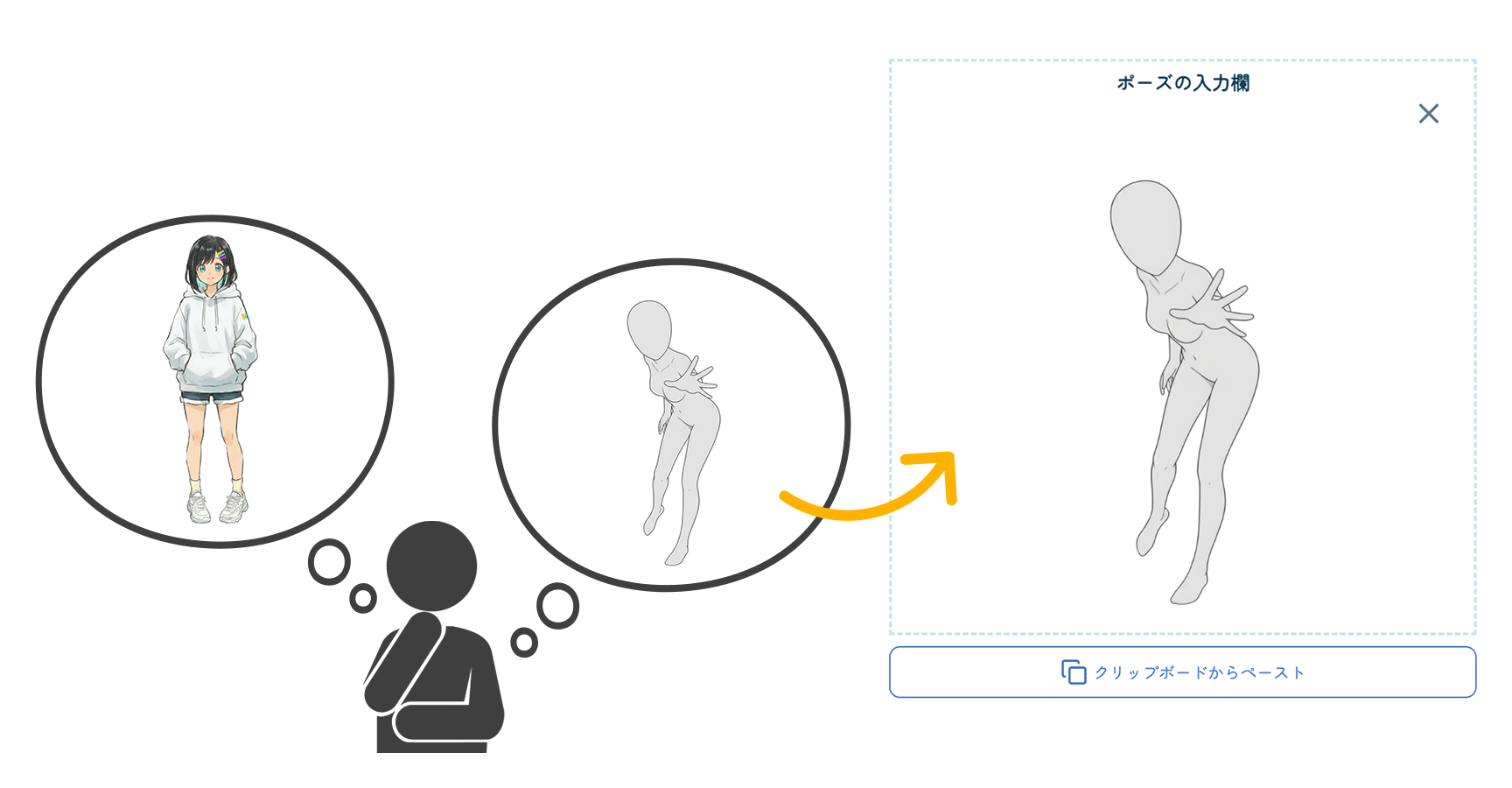
You can output an illustration that changes only the pose to a different one while keeping the character's appearance intact, using a single character image. Compared to standard image-generation features, this is specialized for needs such as "I don't want to change the character's outfit or facial features" or "I want to mass-produce different poses of the same character." The results can be used as finished illustrations as-is, and it's also useful as production material for rough ideas and composition exploration—for example, "exploring what other poses might suit this character" or "having AI propose dynamic action-pose options based on an existing standing character illustration." To perform a pose conversion, you need to provide a "pose reference image" along with the original character image. Even if you don't have a pose reference prepared, copainter offers free pose assets in its asset collection, so please feel free to use them:Learn more
You don’t need a high-performance PC or complex software to use this tool. With its intuitive web interface, even beginners can operate it with ease. copainter is a next-generation creative support tool that expands your creative potential and makes the production process easier.
Instantly transform a single character standing illustration into a wide variety of poses.
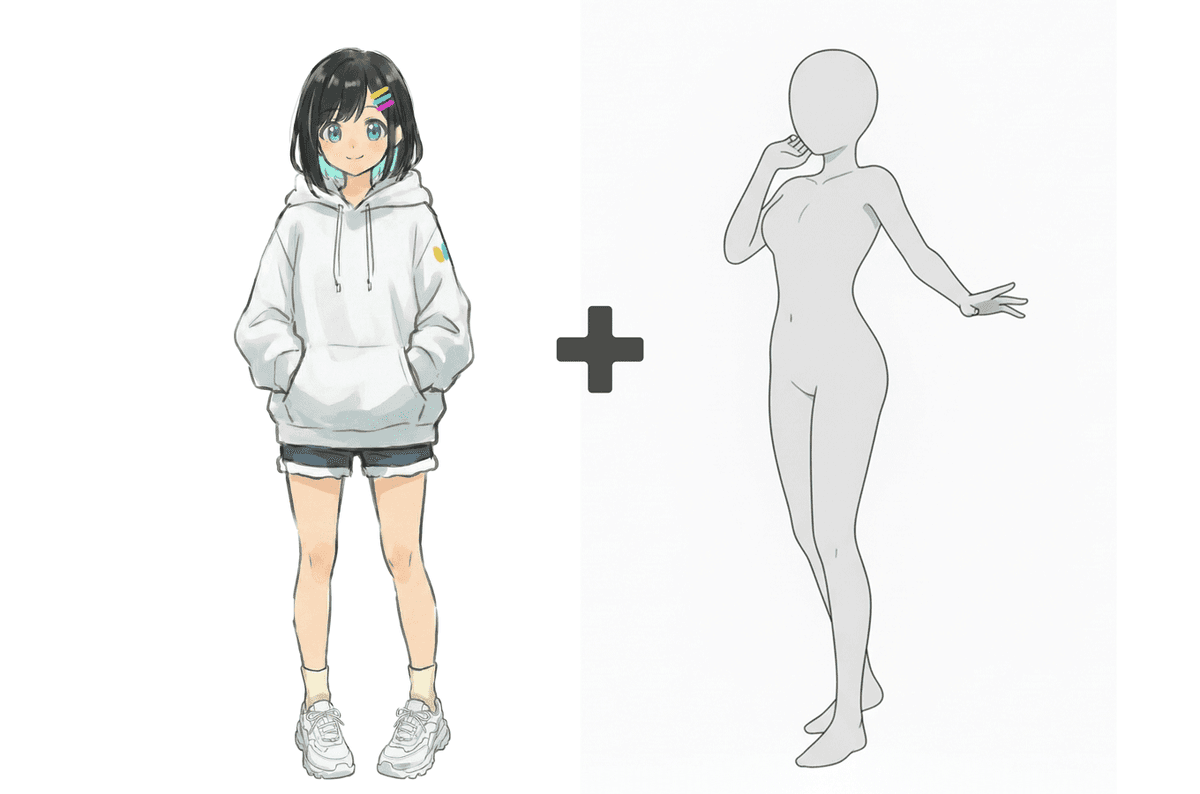



It's very easy to use
Upload the character and pose reference

Upload the character image and the pose image you want to apply, respectively.
Send it and wait a while.

Click the 'Send' button. (One ticket will be consumed at this time.)
Check the new pose

After waiting about 10 seconds, an image converted to the new pose will be generated. If everything looks good, download it to get your image!
Why creators choose copainter Pose Transfer
Get the same character in a different pose with a single click.
Pose transfer requires no text input—just prepare two images. By specifying an "original character image" and a "pose reference image," you can generate a new illustration that keeps the character's facial features, hairstyle, and outfit intact while swapping only the pose. It's especially useful when you want variations of a standing illustration or more pose options for the same character, without having to fine-tune a lot of settings—its biggest appeal is that it lets you spend less time thinking and more time creating.

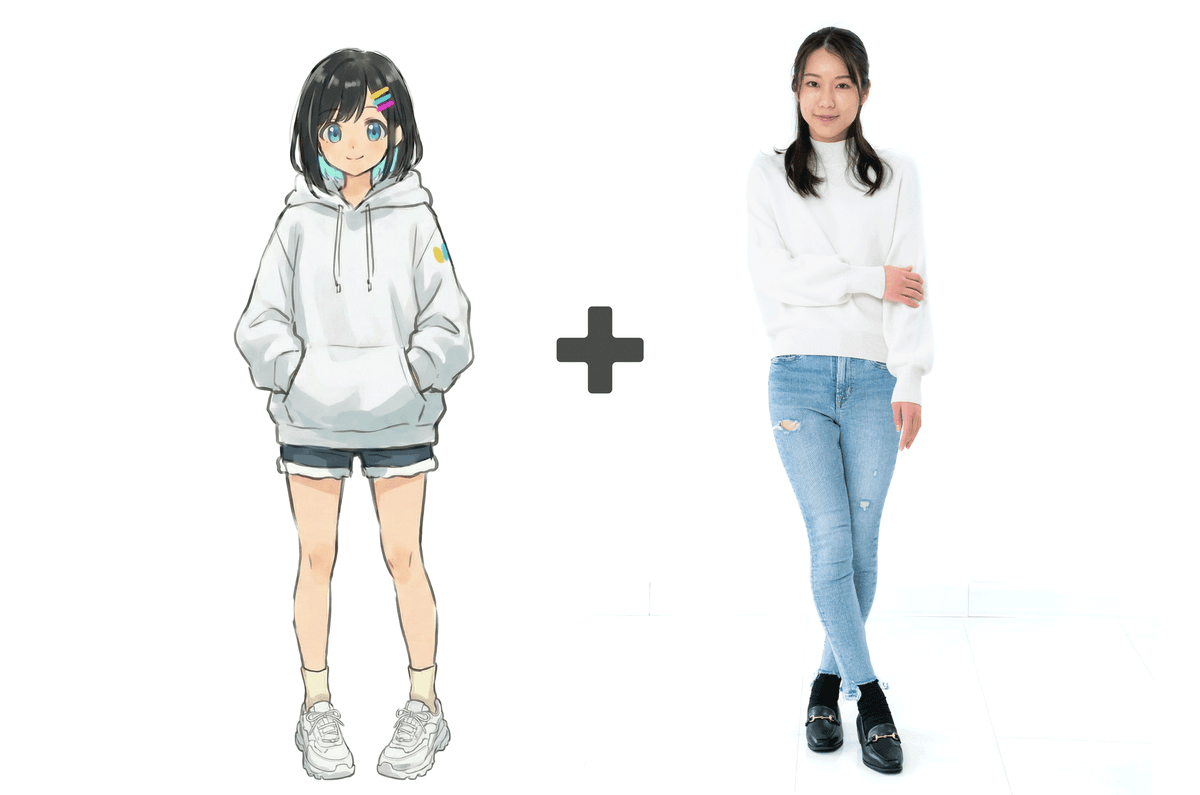
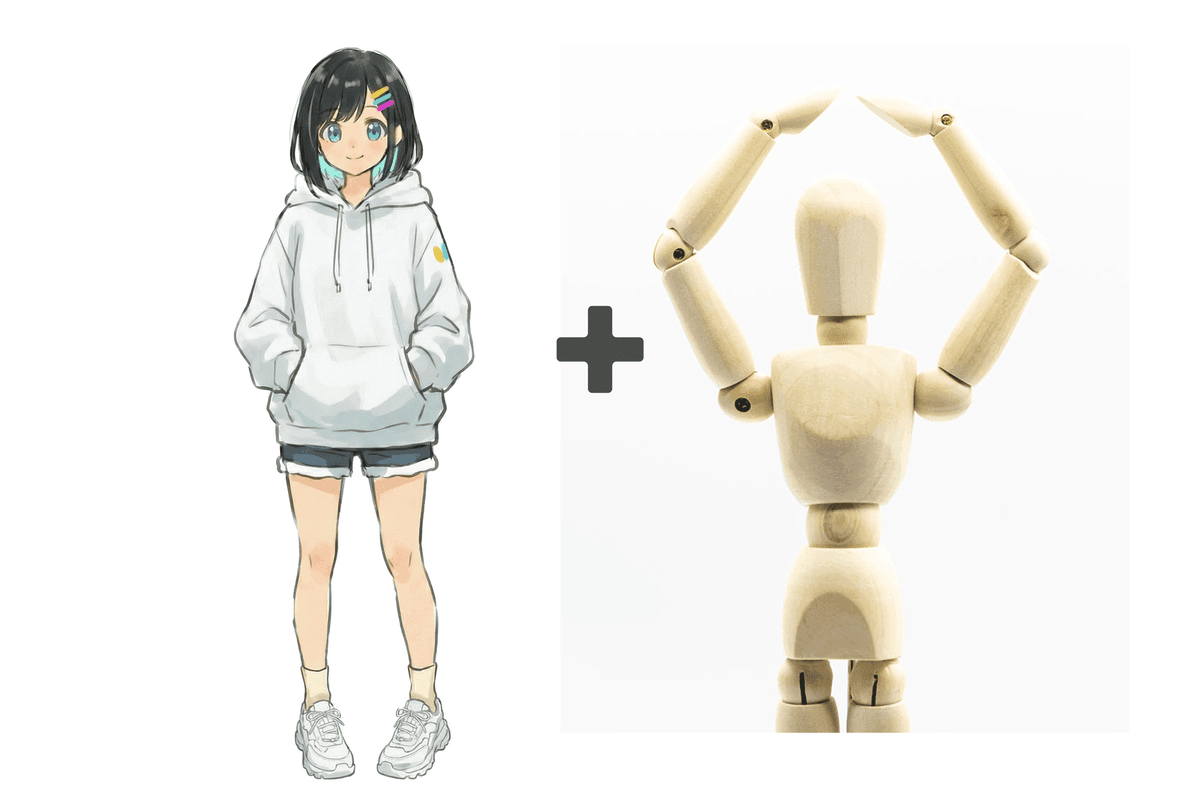
You can make use of the reference materials you already have—such as photos, 3D figures, or pose collections—as-is.
With pose transfer, you can specify the pose entirely through images. You can use any image as a reference—such as a pose photo, a screenshot of a 3D drawing mannequin, or an illustration from an existing pose collection—as-is, as long as it matches the pose you want. This frees you from the stress of "I can't explain it well" or "Putting subtle nuances into words is a hassle." Just pick the pose and say "this one," and you can go straight from reference material to a finished illustration—that's the strength of it.

No prompts needed—an intuitive workflow where you simply input a pose image.
No text input is required—just choose an image that represents the pose you want. Since you don't need to worry about wording an English prompt or crafting detailed instructions, it creates a stress-free workflow for creators who "can picture the pose in an image" and feel that "showing is faster than explaining."